Browse & find outfits
The catalog groups related prefab variants into outfit families. A card may represent several colors or versions; open it to choose the actual prefab you want.
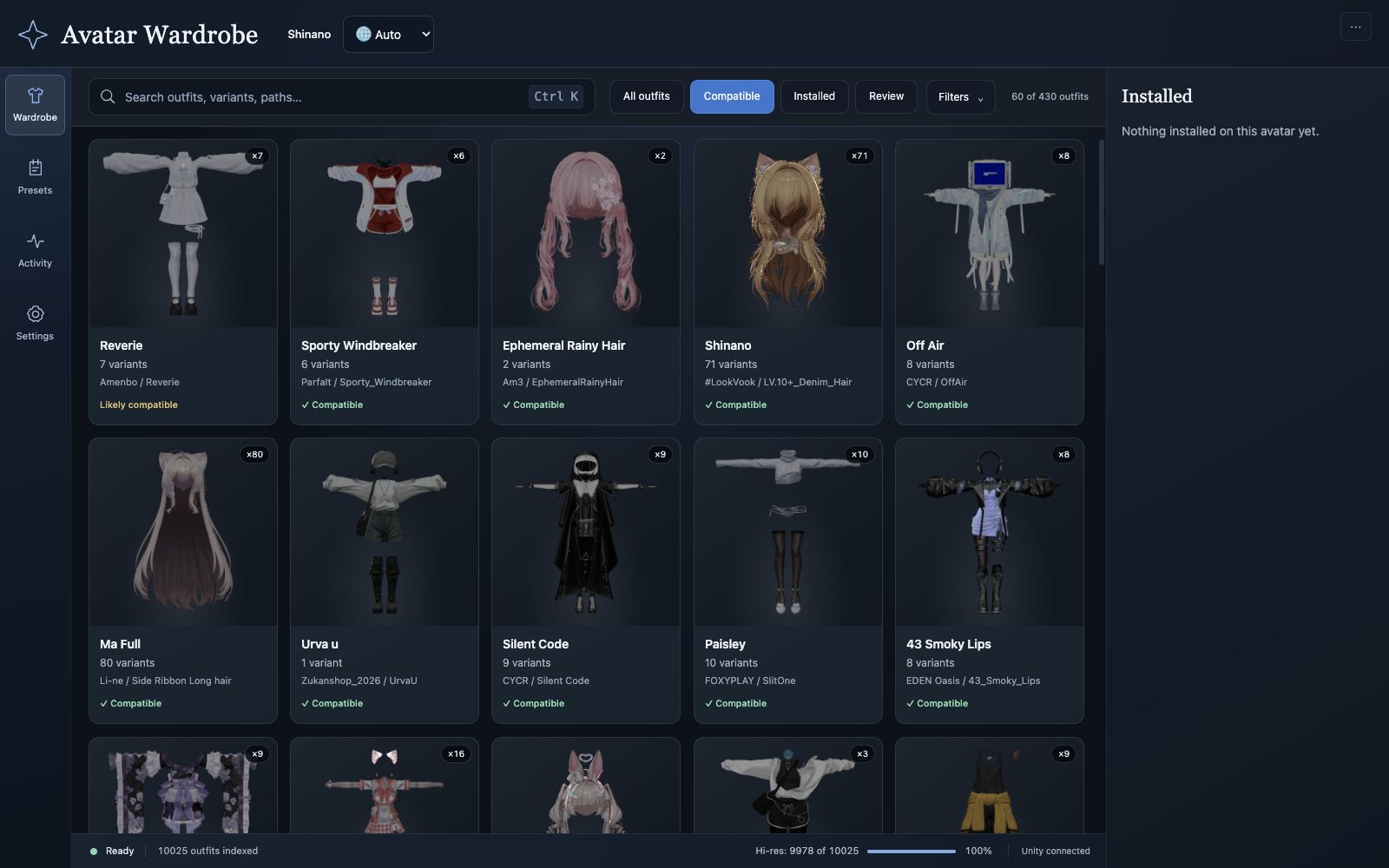
A variant count such as ×6 means there are six choices inside that family.
Narrow the catalog
Type an outfit name, variant, or part of its asset path into the search field. Use the filter chips to change the scope:
| Filter | What it helps you find |
|---|---|
| All outfits | A broader catalog when the compatible view misses an item. Other search and filter choices still apply. |
| Compatible | Items judged compatible or likely compatible with the selected avatar. |
| Installed | Catalog items already installed on the current avatar. |
| Review | Items whose compatibility needs closer inspection. |
Open Filters to choose a Creator, Type, and Sort order. Types include Hair, Outfits, Gimmicks, and Unknown. The default Hair + outfits view is not the same as showing every category.
Hide no-preview can hide items Unity cannot render. Turn it off when searching for something missing. Use Load more, when shown, to reveal additional results.
Understand compatibility
Compatible is a useful first choice, but you still need to check the installed result. Likely compatible means the evidence is less conclusive. An Untested or uncertain item may still work: model-only prefabs can lack enough readable data for a confident result.
Compatibility is not a guarantee of correct body blendshapes, shader setup, or motion. Follow the outfit creator's setup instructions and inspect the avatar in Unity.
Inspect variants
Open a card to see the large preview and variant strip. Select a thumbnail or use the previous/next arrows. Check the selected variant's compatibility and Technical details, including its source path and detected setup.
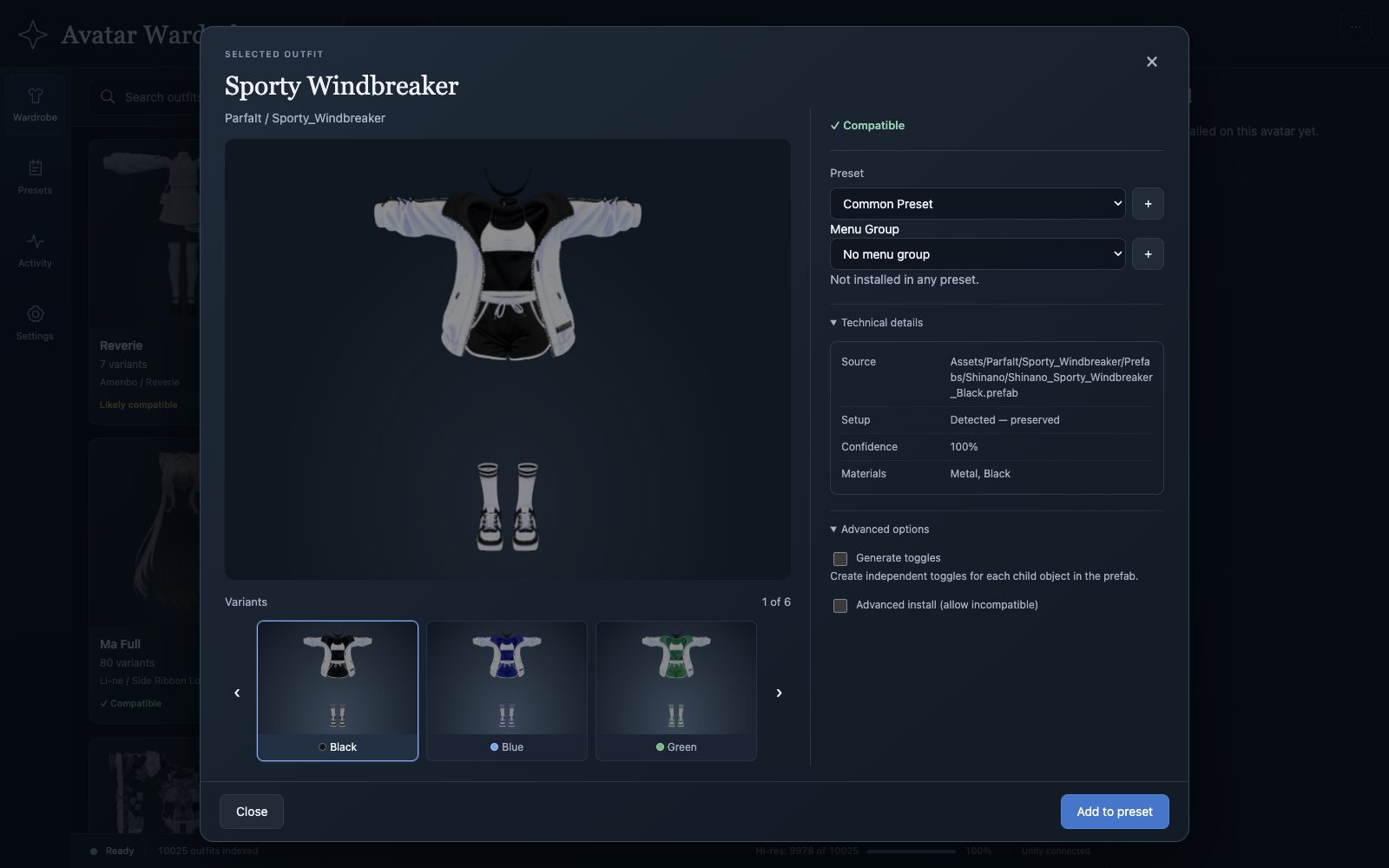
Choose the variant first, then the destination preset. The selected thumbnail is outlined.
Give previews time to finish
Previews are generated in Unity and cached. The background pass prioritizes the current grid while the browser is focused. Scrolling brings new items into that queue; switching away can pause background work.
A missing image does not necessarily mean a missing outfit. For a failed image, use Retry preview when available. Open Activity to distinguish indexing from preview generation.
If the item itself is missing, follow the catalog troubleshooting steps.