Settings & backups
Use Settings for the wardrobe's everyday behavior, and Defaults for the uploader's shared settings.
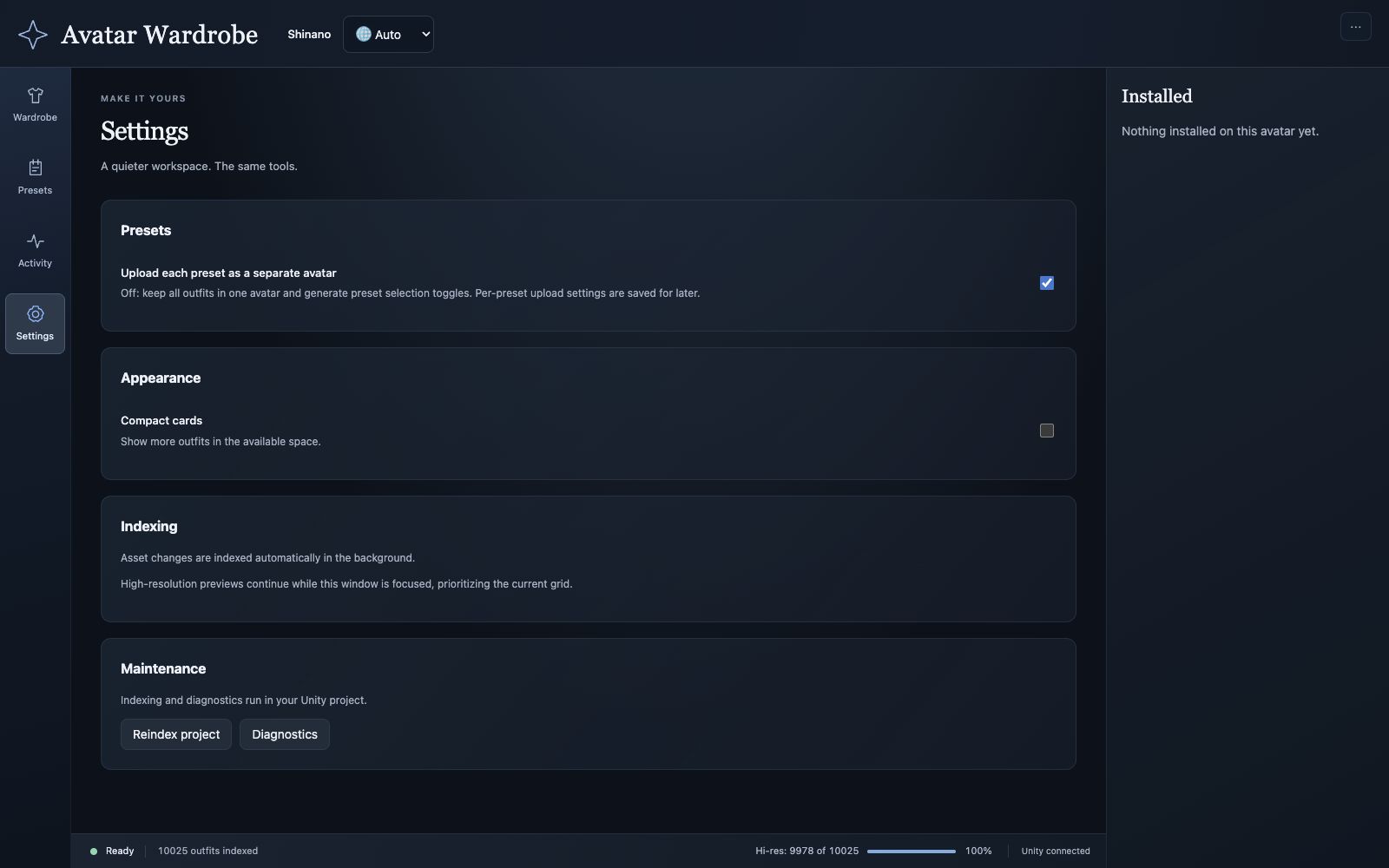
The separate-avatar switch controls whether Presets shows individual avatar upload settings.
Appearance and language
Compact cards fits more outfits into the available space. Use the language dropdown in the header to choose English, 日本語, or automatic language selection. This guide uses English labels; some advanced controls remain English in other interface languages.
Indexing and maintenance
Asset changes are indexed automatically while the browser is open. Use Index changes from Activity or the header's Maintenance menu to request an incremental scan.
Reindex project rescans the project when a full rebuild is needed. It updates the catalog without removing installed outfits. Diagnostics helps inspect preview and catalog state.
High-resolution previews are generated in the background while the browser is focused, prioritizing the current grid. Their progress is independent of the number of results visible after filtering.
Back up your work
Save the Unity scene after installing, grouping, renaming, or removing items. For a complete recovery point, back up the Unity project, including Assets, their .meta files, Packages, and ProjectSettings.
| Data | Where it lives |
|---|---|
| Installed outfit objects and generated menus | Your Unity scene and its object configuration. |
| Preset records, assignments, groups, and upload mode | ProjectSettings/AvatarWardrobePresets.json |
| Wardrobe overrides and upload state | ProjectSettings/AvatarWardrobeOverrides.json and ProjectSettings/AvatarWardrobeUploads.json |
| Batch uploader's per-avatar settings | ProjectSettings/ShiroOutfit_data.json and ProjectSettings/ShiroOutfit_versions.json |
| Catalog and preview images | Rebuildable cache under Library/AvatarWardrobe/ |
Global uploader defaults also use Unity EditorPrefs. Use Presets → Defaults → Export for a portable settings backup. To restore one, choose Import and select the exported JSON, then verify the loaded settings before uploading.
An exported settings file does not contain your clothing, shaders, textures, or scene. Keep it alongside a full project backup when moving computers.
Update the tool
Import the updated Avatar Wardrobe package into the project, preserving its folder locations and asset metadata. Let Unity finish compiling, reopen the launcher, and refresh the browser. Preset and uploader data lives outside the tool folder, but a project backup remains the best recovery point before an update.