Menu groups & toggles
Use the control that matches the choice you want to give the person wearing the avatar.
| Goal | Use |
|---|---|
| Switch between complete looks in one avatar | The generated Presets selector, with separate-avatar mode off. |
| Choose one item from several alternatives | A Menu Group. |
| Turn individual parts of an outfit on and off independently | Generate toggles in the outfit inspector. |
Create a menu group
For example, an “Eyewear” group could contain two pairs of glasses. Selecting one option hides the other items in that group. This is useful for variants that should not appear together.
- Open Presets and find the named preset or Common Preset containing the items.
- In its Menu Groups section, click New menu group and enter a name such as “Eyewear”.
- In Items, choose that group from each relevant item's selector.
- Check the generated menu in Unity and test the options on the built avatar.
You can also select or create a group in the outfit inspector after choosing the destination preset.
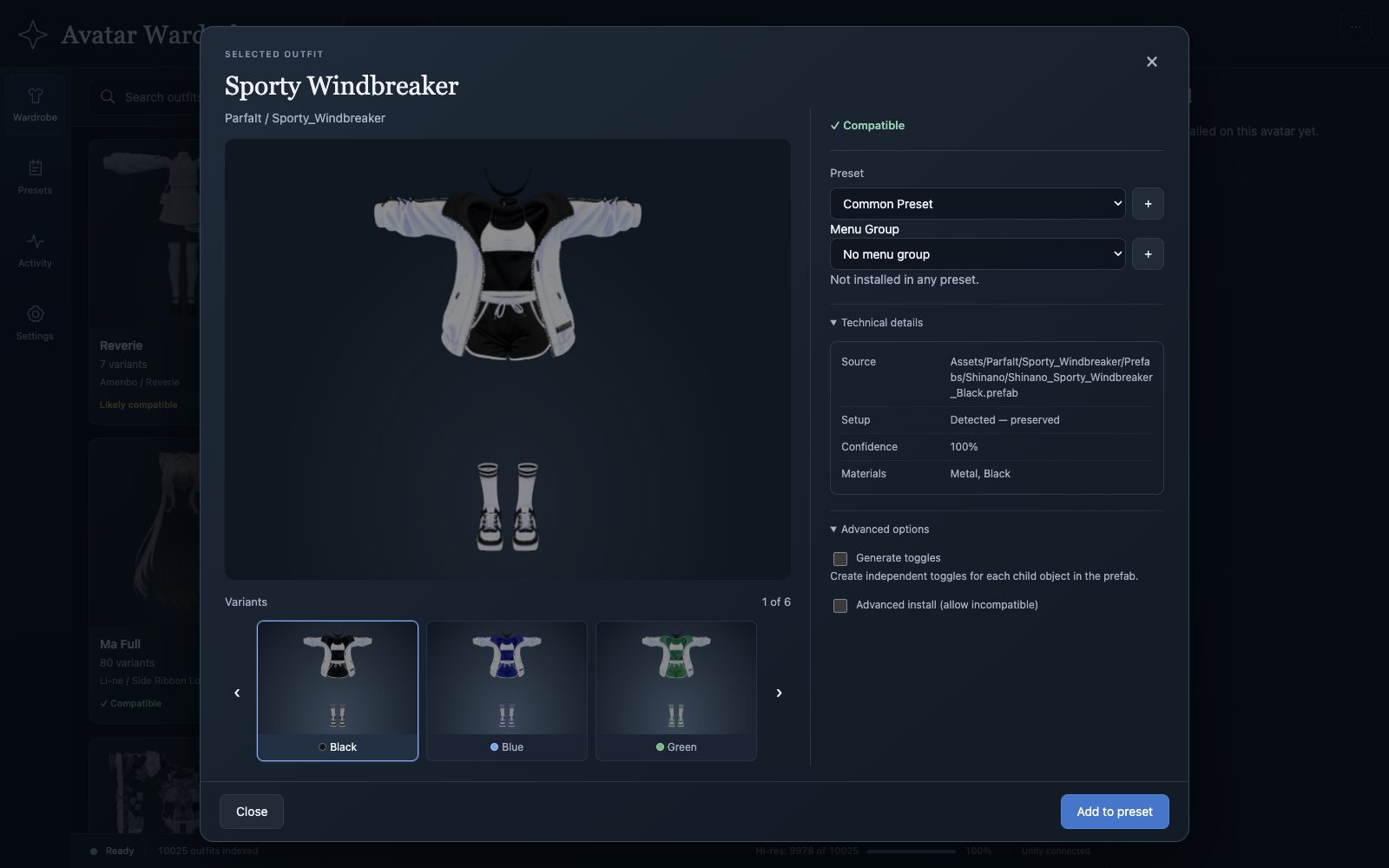
The preset decides where the item belongs. The menu group decides which alternatives it switches between.
Groups appear in the avatar's root expression menu under their group names. Each group has its own selection state, so selecting an item in one group does not select an item in another.
Group-managed items can remain enabled in the scene: generated conditions hide the unselected items at runtime. Seeing several options enabled in the edit-time hierarchy does not by itself mean exclusivity is broken.
Shared menu groups
Common Preset supports groups too. A shared group is included in the combined avatar and regenerated for each staged preset upload. Use this for options available with every look.
Keep the group's members in the intended preset. Common and named presets maintain their own group configuration.
Change or remove a group
Use Rename to change its menu label. Select No menu group on an item to remove its exclusivity restriction while keeping it installed and enabled. Delete group removes the group after confirmation and leaves its items installed.
Generate independent part controls
Open an installed item, select its preset, and enable Advanced options → Generate toggles. This creates separate switches for the prefab's direct children. These controls do not share the group's exclusive selection state.
Use the header's Maintenance → Regenerate toggles to rebuild existing part menus while retaining their parameter identities and defaults. Generated menu helper objects are omitted from the preset Items list.
Always check the resulting expression menu and avatar behavior in Unity before uploading. For missing or competing controls, see troubleshooting.